This tool listens to your assessment interview and fills in the form for you.
It writes a draft. You check every answer. Anything it fills is on the form immediately, so check it there and then.
1. One-time setup — about 5 minutes
Unzip the file you were sent. Put the folder somewhere permanent — Documents is fine. Don't put it in Downloads, and don't move or rename it later. If the folder moves, the tool stops working.
Open Chrome. Type chrome://extensions into the address bar and press Enter. You'll land on a page titled "Extensions".
Turn on "Developer mode." The switch is in the top right corner.
Developer mode is the switch at the top right. Turning it on reveals "Load unpacked" next to it — your list will be empty until you add the folder in the next step.
Click "Load unpacked," then choose the folder you unzipped. A card named "Voice Form Autocomplete" appears in the list — that means it worked.
Click the puzzle-piece icon in Chrome's toolbar and pin this tool, so its icon is always visible.
2. Recording the interview
Record on your phone's voice recorder. One file per visit.
Put the phone on the table between you and the client, face up.
Make sure the client knows they're being recorded and agrees, before you start.
Any common audio format works.
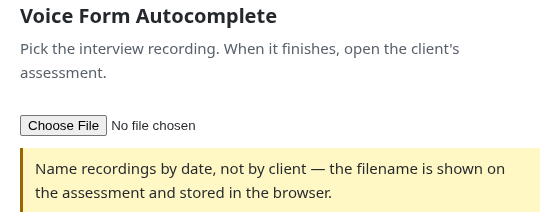
Name the recording file by date, not by the client's name — the filename shows up on the assessment and is stored in the browser.
The recording is sent to a transcription service (Deepgram) to become text, and that text is sent to an AI service (Anthropic) to read it and fill in the form — both outside the building.
3. Uploading
Click the tool's icon in Chrome's toolbar. A new tab opens.
Choose your audio file.
Before you choose a file.
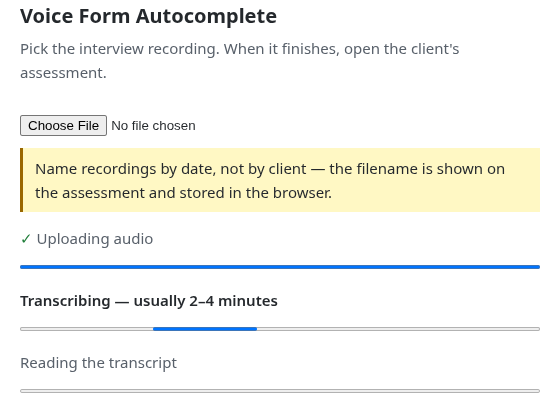
Wait. A 30-minute interview takes about 3 to 5 minutes. Leave the tab open — closing it stops the job.
You'll see three stages, in this order: Uploading audio, then Transcribing — usually 2–4 minutes, then Reading the transcript. A long pause on "Transcribing" is normal.
While it works. Uploading is done here, transcribing is underway.
When it finishes, you'll see one of these messages:
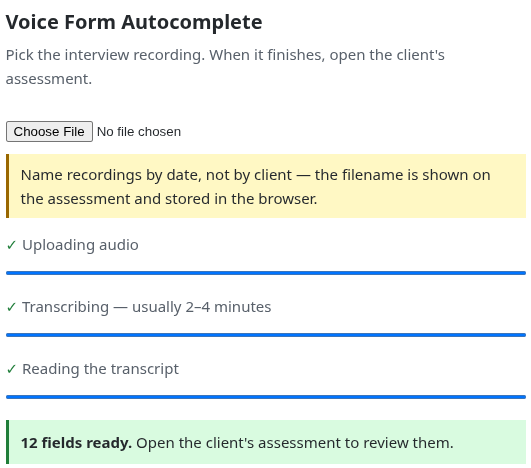
If it went well: "N fields ready. Open the client's assessment to review them." — go there next.
If some sections failed: "Incomplete" with a list of what failed, and a "Retry — no extra transcription cost" button. Retrying does not use up another recording, so use it.
If it says "Stopped." something went wrong before it could finish. There's sometimes a Retry button here too — use it if you see one. If you don't, choose your audio file again to start over.
What success looks like — go open the client's assessment next.
4. Reviewing on the form
Open the client's assessment. A panel appears on the right of the page.
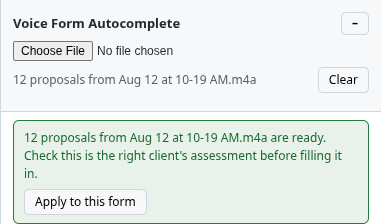
The panel's header has its own "Choose File" button — ignore it. Your recording already arrived automatically from the upload tab. The "Clear" button next to the filename discards this batch with no undo — recovering it means uploading the recording again. Only use it if you mean to start over.
Nothing has been written into the form yet. Before you click, check the sentence above the button: "Check this is the right client's assessment before filling it in." Confirm it, then click "Apply to this form."
Sometimes you'll see a banner instead of the button:
If it asks whether you still want proposals from days ago, click "Use them anyway" to continue, or "Clear" to discard them and start over. Clear cannot be undone — recovering it means uploading the recording again, so only choose it if you're fine doing that.
If it says some sections failed and lists them, read the list, then click "I understand, show the fields" to continue with what did come through.
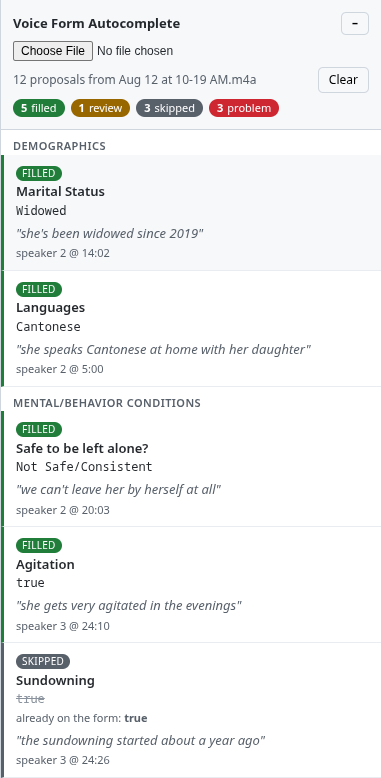
After you click Apply, every answer the tool looked at falls into one of four groups:
Group
What it means
What you do
Filled
The tool wrote an answer into the field. It's outlined in green on the form.
Check it against what you remember.
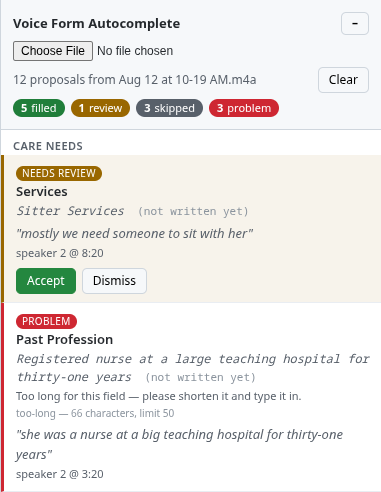
Needs review
The tool wasn't confident enough to write this in by itself.
Read the quote, then click Accept or Dismiss.
Skipped
The field already had an answer on the form, so the tool left it alone — or you clicked Dismiss on a Needs review row.
Nothing to do.
Problem
The tool has a proposed answer, but something about the field stopped it from writing this one in.
The panel says why on each row — do what it says, then type the answer in yourself.
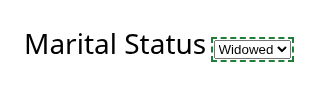
The panel counts each group at the top, then lists every field below it — these rows are four Filled and one Skipped. Nothing to do on Skipped; check each Filled one against what you remember.These two are the groups that need you to act: Needs review (click Accept or Dismiss) and Problem (read why on the row, fix it, then type the answer in yourself).On the form itself, a filled field looks like this — a green dashed outline around the answer.
Every row shows the sentence from the interview it came from. Read it. That sentence is the only reason to believe the answer.
Click anywhere on a row to jump to that field on the form — it flashes briefly, which helps on a long form.
5. Check every field
Go through every field the tool touched and check it against what you remember from the visit. The tool can mishear, and it can be confidently wrong.
Look for two outlines on the form: a green dashed outline is a field the tool filled by itself; a blue solid outline is one you accepted from a Needs review row. Check both the same way.
Check every filled field before you leave this page.
6. When something's wrong
Send Jay: which field, what it put there, what it should have said.
That's what makes it better. Wrong answers are more useful than right ones right now.
If it stops working
Icon gone or greyed out → the folder was moved or deleted. Ask Jay for the file again.
"Choose file" on the upload tab does nothing → make sure you picked an audio file, not a document.